
 ;
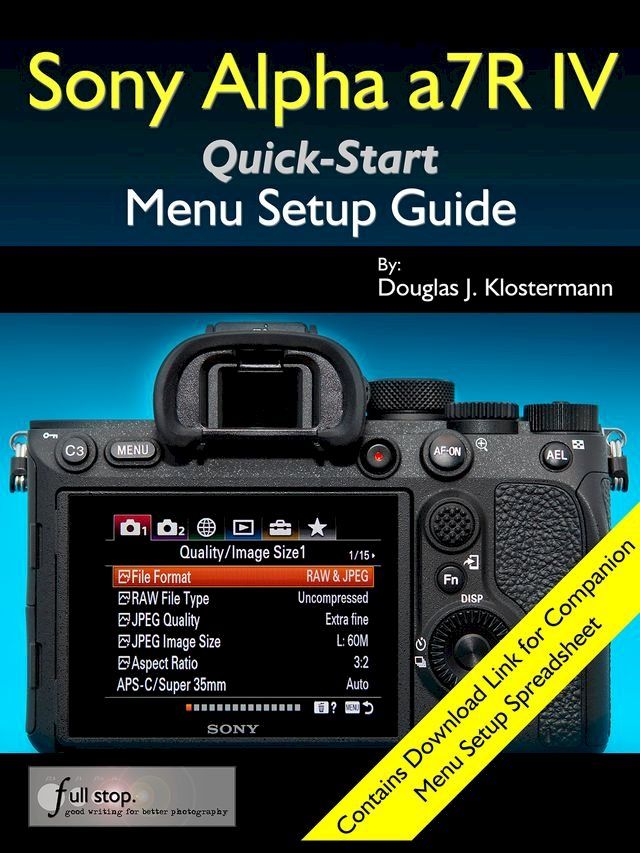
;Sony Alpha a7R IV Menu Setup Guide(Kobo/電子書)
- P幣
全盈+PAY 單筆滿1200回饋80P幣(限量)
- P幣
全盈+PAY 單筆消費滿5000回饋400P幣(限量)
- 登記送
11/01-11/07【加碼送300P幣-資格登記B】百貨指定單筆滿$1500 即可進行登記
- 信用卡、無卡分期、行動支付,與其他多種方式
- PChome 聯名卡最高6%,新戶再享首刷禮1000P
- 廠商出貨本商品不受24h到貨限制
- 電子書非實體商品,發送方式詳見商品頁說明
- 宅配到府(本島/低溫)滿$699免運
- 宅配到府(本島/常溫)滿$490免運
- 超商取貨(常溫)滿$350免運
- 超商取貨(低溫)滿$699免運
- i郵箱(常溫)滿$290免運


作者: | |
ISBN: | 1230003718391 |
出版社: | |
出版日期: | 2020/02/18 |
內文簡介
Take Control of your Sony Alpha a7R IV with this Clear and Concise Menu Setup Guide!
Sony Alpha a7R IV Menu Setup Guide for the Sony a7R IV mirrorless camera will help you navigate the detailed and complex menu system, as you set up the camera for your specific shooting needs. This quick-start guide clearly and concisely explains and illustrates all of the items in the numerous menus, including the Camera Settings 1, Camera Settings 2, Network, Playback, and Setup Menus. Each menu item description includes suggested settings and starting points, to assist you in setting up and using your camera.
- Includes Descriptions of all a7R IV Menu Items, with menu screenshots, plus suggested settings and starting points.
- Explains Custom Button Configurations, with recommended settings.
- Discusses the Sophisticated Autofocus System, including the Focus Modes and Focus Areas, plus face and eye detection autofocus, and back-button focus.
This e-book guide contains a free download link for the companion Sony a7R IV Menu Setup Spreadsheet. The spreadsheet lists suggested settings and recommended starting points for the Settings 1, Settings 2, and Setup Menu items, with full and separate listings for various shooting situations such as Landscape, Sports, Birds, Portraits, and Studio. And you can edit and customize the spreadsheet with your preferred settings.
Get up and running quickly, and start to take control of your Sony a7R IV and the images you create, with this quick-start Menu Setup Guide!
Kobo 電子書 購買注意事項如下:
(一)如果您是第一次購買Kobo電子書的顧客,請依以下兩種購買方式擇一進行綁定:
1.PChome 24h 網頁版(https://24h.pchome.com.tw/):結帳後至顧客中心,確認訂單狀態,若為確認中,請稍候五分鐘,待訂單狀態變為訂單成立後,點選明細,在訂單資訊中點選〔內容〕,在彈跳視窗後點選〔去兌換〕,即可前往Kobo官網執行綁定及登入流程。
我的訂單/顧客中心 >訂單查詢> 訂單編號> 點選明細 > 訂單資訊 點選〔內容〕>彈跳視窗 點選〔去兌換〕即可前往Kobo官網執行綁定及登入流程。
2.PChome APP版:結帳後至顧客中心,確認訂單狀態,若為確認中,請稍候五分鐘,待訂單狀態變為訂單成立後,點選明細,在訂單資訊中點選[序號/軟體下載],並在彈跳視窗出現後點選〔下載連結〕,即可前往Kobo官網執行綁定及登入流程。
顧客中心> 訂單查詢> 訂單編號> 點選明細 > 訂單資訊 點選 [序號/軟體下載] >彈跳視窗 點選〔下載連結〕即可前往Kobo官網執行綁定及登入流程。
*進入Kobo官網後的綁定流程請參考如下:
(使用Kobo主帳號 登入/註冊)
1. 當您在PChome 24h 網頁版(https://24h.pchome.com.tw/)/PChome APP版,購買確認後,並依步驟跳轉到Kobo官網時,下滑點選〔更多登錄選項〕,由〔PChome〕後點選進入,同意後登入,並可以註冊Kobo主帳號進行綁定,完成後,所購買的書籍即會出現在Kobo APP/Kobo 閱讀器/Kobo官網內的我的書籍。(使用快速登入:FACEBOOK、GOOGLE、APPLE帳號登入)
2. 當您在PChome 24h 網頁版(https://24h.pchome.com.tw/)/PChome APP版,購買確認後,並依指示跳轉到Kobo官網時,點選〔FACEBOOK、GOOGLE、APPLE帳號登入〕擇一登入,同意後登入,並可以註冊Kobo主帳號進行綁定,完成後,所購買的書籍即會出現在Kobo APP/Kobo 閱讀器/Kobo官網內的我的書籍。(二)如果您是已經完成PChome與Kobo帳號綁定程序,非第一次購買Kobo電子書的顧客
1.PChome 24h 網頁版(https://24h.pchome.com.tw/):結帳後至顧客中心,確認訂單狀態,若為確認中,請稍候五分鐘,待訂單狀態變為訂單成立後,點選明細,在訂單資訊中點選〔內容〕,在彈跳視窗後點選〔去兌換〕,所購買的書籍即會出現在Kobo APP/Kobo 閱讀器/Kobo官網內的我的書籍。
2.PChome APP版:結帳後至顧客中心,確認訂單狀態,若為確認中,請稍候五分鐘,待訂單狀態變為訂單成立後,點選明細,在訂單資訊中點選[序號/軟體下載],並在彈跳視窗出現後點選〔下載連結〕,所購買的書籍即會出現在Kobo APP/Kobo 閱讀器/Kobo官網內的我的書籍。
- 退換貨:依樂天Kobo官方規範為準
- 僅能由 閱讀器以外 的裝置做會員帳號綁定
- 請注意,帳號綁定後:
* Kobo會更新您的帳戶詳細資料
* 您將能在Kobo APP/Kobo 閱讀器/Kobo官網中查看所有書籍
* 帳號綁定後,您可以使用任一帳戶登入 Kobo
* 完成第一次串接時,請登出所有裝置,約等待5分鐘後再登入即可查看您的書籍
* 重新登入後,原帳戶中的書籍如有畫線註記和收藏將有遺失的可能。登出前,請務必先行拍照備份
* 若您有任何相關疑問請至Kobo官方網站 https://help.kobo.com/hc/zh-tw 並到頁面最下方點選“聯繫我們”

1. 出版地:台灣
2. 本商品為數位內容商品,非實體紙本書籍
3. 完成購買後,請使用Kobo App、Kobo桌面閱讀軟體Kobo Desktop或Kobo閱讀器閱讀。App詳情請見:https://www.kobo.com/tw/zh/p/apps
4. 下載格式:Epub2-流式格式
樂天Kobo官方授權銷售
1. 訂單確認交易成功後,系統會自動將書籍匯入帳戶
2. 請使用樂天Kobo提供的閱讀程式或裝置閱讀
3. 訂單及書籍問題請聯繫PCHOME客服中心
相關分類
| 寄送時間 | 預計訂單成立後7個工作天內送達不含週六日及國定假日。如廠商有約定日將於約定日期內送達,約定日期需於訂單成立後14天內。 |
|---|---|
| 送貨方式 | 透過宅配或是郵局送達。 消費者訂購之商品若經配送兩次無法送達,再經本公司以電話與E-mail均無法聯繫逾三天者,本公司將取消該筆訂單,並且全額退款。 |
| 送貨範圍 | 限台灣本島地區。注意!收件地址請勿為郵政信箱。 若有台灣本島以外地區送貨需求,收貨人地址請填台灣本島親友的地址。 |
| 執照證號&登錄字號 | 本公司食品業者登錄字號A-116606102-00000-0 |
- PChome24h購物的消費者,都可以依照消費者保護法的規定,享有商品貨到次日起七天猶豫期的權益。(請留意猶豫期非試用期!!)您所退回的商品必須回復原狀(復原至商品到貨時的原始狀態並且保持完整包裝,包括商品本體、配件、贈品、保證書、原廠包裝及所有附隨文件或資料的完整性)。商品一經拆封/啟用保固,將使商品價值減損,您理解本公司將依法收取回復原狀必要之費用(若無法復原,費用將以商品價值損失計算),請先確認商品正確、外觀可接受再行使用,以免影響您的權利,祝您購物順心。
- 如果您所購買商品是下列特殊商品,請留意下述退貨注意事項:
- 易於腐敗之商品、保存期限較短之商品、客製化商品、報紙、期刊、雜誌,依據消費者保護法之規定,於收受商品後將無法享有七天猶豫期之權益且不得辦理退貨。
- 影音商品、電腦軟體或個人衛生用品等一經拆封即無法回復原狀的商品,在您還不確定是否要辦理退貨以前,請勿拆封,一經拆封則依消費者保護法之規定,無法享有七天猶豫期之權益且不得辦理退貨。
- 非以有形媒介提供之數位內容或一經提供即為完成之線上服務,一經您事先同意後始提供者,依消費者保護法之規定,您將無法享有七天猶豫期之權益且不得辦理退貨。
- 組合商品於辦理退貨時,應將組合銷售商品一同退貨,若有遺失、毀損或缺件,PChome將可能要求您依照損毀程度負擔回復原狀必要之費用。
- 若您需辦理退貨,請利用顧客中心「查訂單」或「退訂/退款查詢」的「退訂/退貨」功能填寫申請,我們將於接獲申請之次日起1個工作天內檢視您的退貨要求,檢視完畢後將以E-mail回覆通知您,並將委託本公司指定之宅配公司,在5個工作天內透過電話與您連絡前往取回退貨商品。請您保持電話暢通,並備妥原商品及所有包裝及附件,以便於交付予本公司指定之宅配公司取回(宅配公司僅負責收件,退貨商品仍由特約廠商進行驗收),宅配公司取件後會提供簽收單據給您,請注意留存。
- 退回商品時,請以本公司或特約廠商寄送商品給您時所使用的外包裝(紙箱或包裝袋),原封包裝後交付給前來取件的宅配公司;如果本公司或特約廠商寄送商品給您時所使用的外包裝(紙箱或包裝袋)已經遺失,請您在商品原廠外盒之外,再以其他適當的包裝盒進行包裝,切勿任由宅配單直接粘貼在商品原廠外盒上或書寫文字。
- 若因您要求退貨或換貨、或因本公司無法接受您全部或部分之訂單、或因契約解除或失其效力,而需為您辦理退款事宜時,您同意本公司得代您處理發票或折讓單等相關法令所要求之單據,以利本公司為您辦理退款。
- 本公司收到您所提出的申請後,若經確認無誤,將依消費者保護法之相關規定,返還您已支付之對價(含信用卡交易),退款日當天會再發送E-mail通知函給您。